

iOS app
rChat for iOS runs on iPhone and iPad and connects to a relay you, or someone you trust, runs.
Requirements
Section titled “Requirements”- iPhone or iPad with iOS 17 or later.
- An invite to an rChat relay running protocol v3 (rChat 2.0.0), from its operator: a QR code or an
rchat://relaylink. Without one, you need the relay’s URL, including its WebSocket path, such aswss://chat.example.com/<websocket_path>.
Install
Section titled “Install”The app is coming to the App Store. There is no Mac app yet; see Mac app.
First run
Section titled “First run”- Welcome. Tap through to set up.
- Connect. Enter a display name, then choose your relay: Scan relay invite (scan the operator’s QR code) or Paste invite. rChat shows the relay’s host and asks you to confirm, then saves the address and pins the relay’s identity. If you have no invite, Enter manually takes the server URL. Your display name is visible to contacts.
- Your identity. The app generates your identity keys on the phone and stores the secret in the iOS Keychain, readable only on this phone after it has been unlocked once. It also creates this phone’s device key in the Secure Enclave. It shows a short preview of your public key, for recognising a key at a glance.
- Exchange codes. Show your QR code to a contact, or scan theirs. You can skip this and add contacts later.
When it connects, the app checks the relay’s identity, then publishes your public keys, signed by your identity key, with a proof tied to that connection. It does this again after every reconnect.
Server identity and invites
Section titled “Server identity and invites”A relay invite pins the server’s identity as soon as you confirm it. Without an invite, the app remembers your server’s identity after the first connection. Either way, if it changes without a handover signed by the old identity, the app stops connecting and tells you.
- Another invite. An invite never replaces the relay you use without a confirmation that names both hosts. An invite with a new address for the same relay asks “Update relay address?”. An invite that gives your relay a different server identity shows a warning first and then both identities side by side; continue only if the relay’s operator told you they reset it.
- Inviting someone. Settings → Connection → Invite someone to this relay shows the invite as a QR code, with Share invite. It is offered once the server’s identity is pinned from an invite or entered by you, not from a first connection. “Anyone with this invite can reach your relay. They can’t read messages.”
- Entering the identity yourself. In Connection settings you can enter the identity your server’s operator gives you (
rk:1:…) and turn on Require a saved server identity, so the app does not trust a first connection.
Add a contact
Section titled “Add a contact”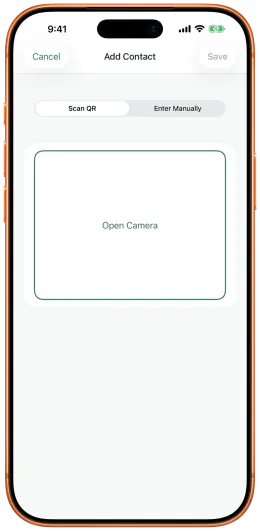
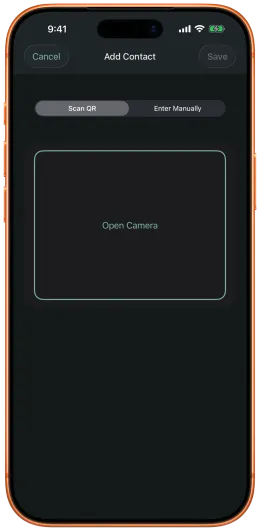
From the contacts list, choose to add a contact, then either:
- Scan QR: scan the contact’s code; or
- Enter manually: paste the contact code they copied to you. Typing in someone’s keys by hand is not enough to reach them since rChat 2.0.0, because their code also carries a post-quantum key; rChat says “Typed-in keys aren’t enough to reach them. Scan their code or paste it instead.”
Adding someone from their code accepts them and saves their keys, including their device key, which lets rChat resend lost messages automatically. A pasted code sets the device key only when it adds a brand-new contact; for someone you already have, scan their code in person. rChat will not talk to them under different keys: if the relay presents other keys, the contact shows Keys don’t match until you scan their code again.
A conversation opens once both of you have added each other, or one of you has accepted the other’s request.
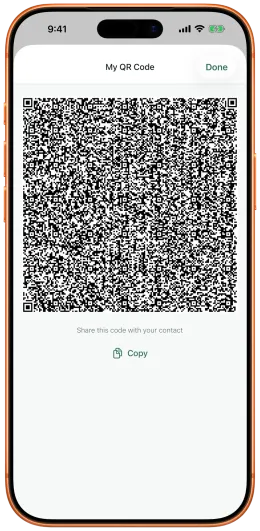
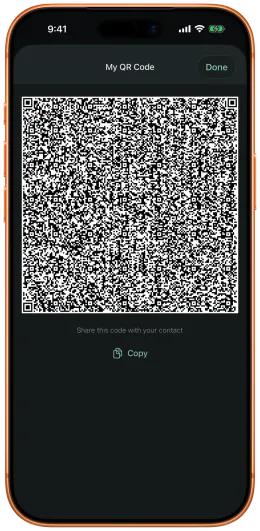
Codes are about 1.7 KB since rChat 2.0.0, so the QR code is denser. A code from an older version of rChat is refused: “This code is from an older version of rChat. Ask them to update rChat and show their code again.”
To share your own code later, open it from Settings, where you can also copy it as text.
Requests
Section titled “Requests”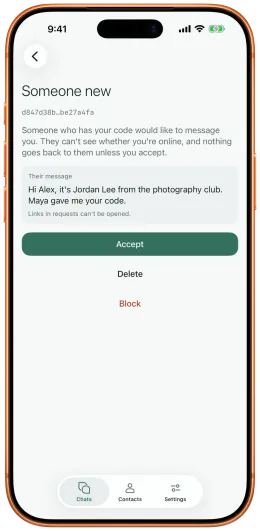
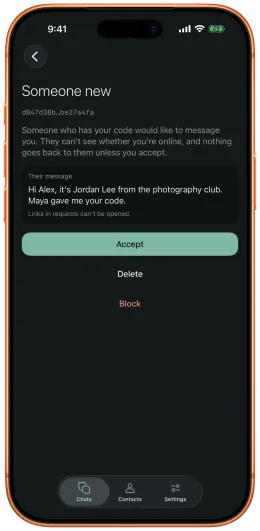
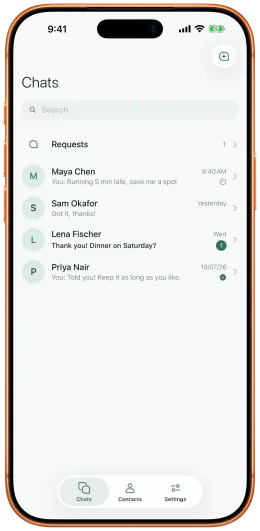
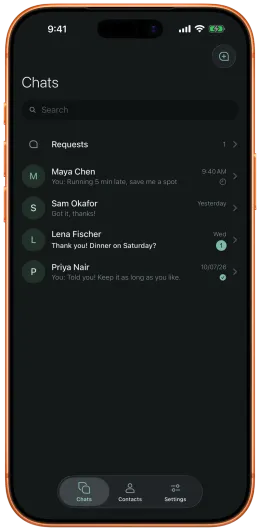
Someone who has your code but whom you haven’t accepted appears in a quiet Requests row in Chats. They can’t see whether you’re online, and nothing goes back to them unless you accept. A request may carry one short first message.
You can accept, delete or block a request. Contact Info then shows where the keys came from: Keys from their code or Keys from their first message. For a contact who reached you through a request, compare safety numbers or scan their code in person.
Safety numbers
Section titled “Safety numbers”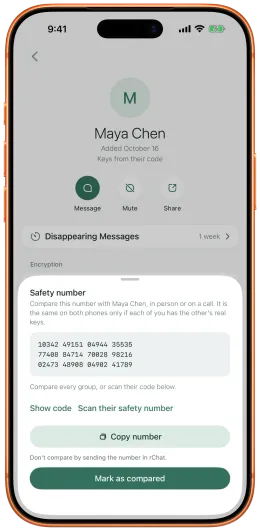
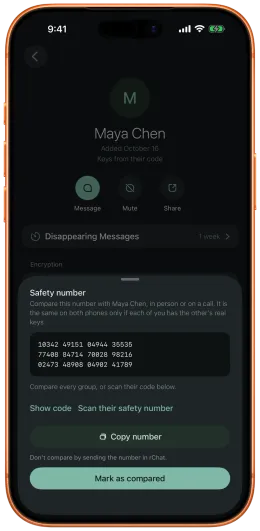
Contact Info has a Safety number row. Tap View to see all 60 digits. Compare every group with your contact in person or on a call (don’t compare by sending the number in rChat), then tap Mark as compared.
To compare by QR, tap Show code on one phone and Scan their safety number on the other. rChat compares the numbers for you and offers Mark as compared when they match.
If the contact’s keys later change, the mark is removed.
Connection states
Section titled “Connection states”The composer and the chat title tell you what is happening:
| Title | Composer placeholder | Meaning |
|---|---|---|
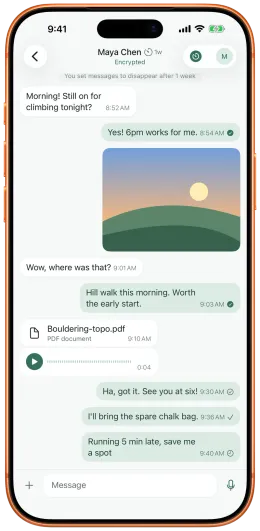
| Encrypted | Message | Connected to the relay with a session for this contact. |
| Waiting for name | name hasn’t connected yet. Messages will send when they do. | Connected to the relay, no session with this contact yet. |
| Connecting to your relay… | Connecting to your relay. Messages will queue. | Your phone is reaching the relay. |
| Offline | You’re offline. Messages will send when you reconnect. | No connection to the relay. |
Send stays available in every state. Messages are saved on the phone and sent once the connection and session are ready.
Message status
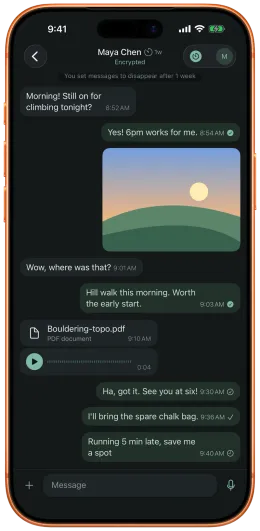
Section titled “Message status”Each outgoing message shows one of: Sending, Sent (the relay took it), Delivered (stored on the contact’s phone), Read, Not delivered (the contact’s phone could not read it), Not confirmed (the relay’s acknowledgement did not arrive in time), or Failed to send. Delivery and read receipts are end-to-end encrypted and arrive a moment later, in small batches.
Restarting the app loses no message the relay accepted, apart from the limits on Delivery and recovery. If a contact reinstalls rChat, messages their phone could not read are resent automatically, marked Resent, when their device key was pinned from their code (a scan in person, or the paste that first added them); otherwise they show Not delivered with Resend. See Delivery and recovery.
Messages
Section titled “Messages”- Text, photos, files and voice messages up to 60 seconds. All are end-to-end encrypted and padded to a size bucket.
- Photo sends a smaller copy with its location, camera details and dates removed. Send as file sends the original, after a warning; File sends any document from the Files picker, up to just under 4 MiB. See Media and disappearing messages.
- Long-press a photo for Save to Photos, or a file or voice message for Save to Files and Share….
- Disappearing messages. Set a timer for a chat (5 minutes to 4 weeks); each phone deletes messages when it runs out. See Media and disappearing messages.
- Swipe a message to reply to it.
- Messages are stored on the phone encrypted, with a key held in the iOS Keychain. rChat’s databases and media are excluded from device backups.
- Incoming media is checked before it is shown: oversized images are refused and others re-encoded, voice messages over 5 minutes are refused, and very long texts are cut.
Settings
Section titled “Settings”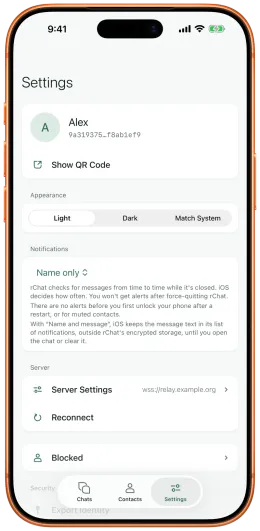
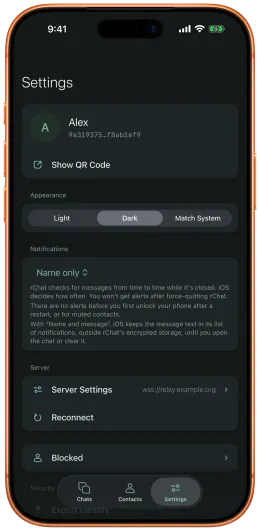
- Connection. Scan or paste a relay invite, or change the server URL and choose Save & Reconnect. Invite someone to this relay shows this relay’s invite.
- Identity. Shows a preview of your public key.
- Rotate keys. Makes new keys for your account and tells your contacts with a notice signed by your current keys, so your conversations carry on. You can rotate once a day, and your safety numbers with everyone change. rChat reaches at most 90 contacts a day with the new keys. Rotation does not recover a stolen account: if your phone or keys may have been stolen, use Reset Identity instead.
- Reset Identity. Deletes your identity, your device key, server settings and stored data from the phone. You start over without your contacts, who must add your new code.
- Notifications. What alerts show: Name only (the default), Nothing, or Name and message. See Notifications.
- Extra traffic protection (off by default). Sends small dummy messages while rChat is open. It uses more data and battery, makes the timing of your messages only somewhat harder to read, and lets people you have open conversations with tell when rChat is open.
- Steady traffic (off by default), under Extra traffic protection. While rChat is open, sends a steady stream of same-size packets so the timing of your messages reveals less; Send every 0.5 s, 1 s or 2 s (about 10 MB, 5 MB or 2.6 MB an hour). It replaces Extra traffic protection while on. See Steady traffic.
- Warn before saving copies (on by default). Shows a notice the first time in a session you save a photo or file out of rChat.
- Incognito keyboard (off by default). Turns off autocorrect and suggestions in chats.
The app also hides its content in the app switcher, blanks QR codes and the safety number while the screen is recorded or mirrored, and uses the system keyboard instead of third-party keyboards.
Troubleshooting
Section titled “Troubleshooting”Stays on “Offline” or “Connecting to your relay…”
- Check the server URL, including the exact WebSocket path. With a wrong path the relay serves its decoy website and the app cannot connect.
- Use
wss://. - If the relay was just set up with automatic certificates, wait for its first certificate to be issued, and make sure it is not still on staging.
“This server couldn’t prove its identity”
Something in front of the relay terminates TLS. The operator must let the relay terminate TLS itself (see Behind a TCP front end).
The server’s identity changed
The relay presented a different identity without a signed handover. Ask the operator before you trust it.
A contact stays on “Waiting for name”
- Both of you must use the same relay.
- Both of you must have accepted each other: by scanning codes, or by one accepting the other’s request.
- The contact’s phone must have connected at least once, so their keys are published.
Messages arrive late after the app was in the background
iOS limits background activity. rChat checks for messages from time to time while it’s closed, when iOS lets it, and reconnects when it returns to the foreground. There are no alerts after you force-quit rChat or before you first unlock your phone after a restart. See Notifications.
A message to an offline contact stays “Sending”
After you reopen rChat while a contact is offline, the conversation can only be opened again once you are both online, so the message waits on your phone and is sent automatically then. See Delivery and recovery.
“That isn’t a relay invite”
The link or code is not an rChat invite, or it is damaged or too long. Ask the relay’s operator for a new one.